How to scan documents on iPhone privately
Most people need a scanner for ordinary paper: contracts, school forms, insurance letters, medical intake sheets, and tax records. The important part is not only capturing the page. The important part is keeping the document readable and under your control.
1. Start with the page, not the app
Put the document on a flat surface with enough light. Avoid strong shadows across the page. If the paper is wrinkled, flatten it first; OCR works better when text lines are straight.
2. Scan, then review the page
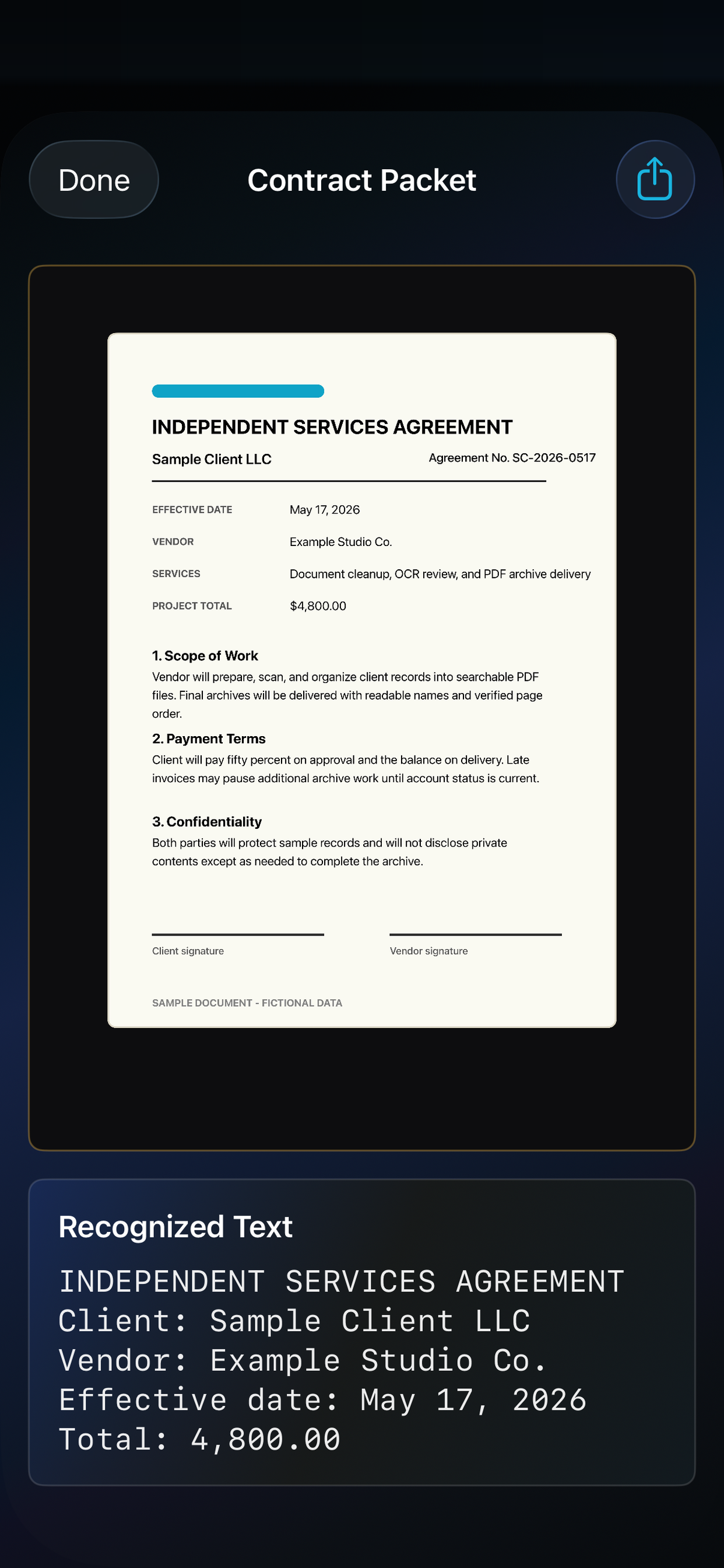
SaneScan uses Apple's system document scanner for new paper. After capture, check the page edges and retake the scan if a corner is missing. One clean capture is better than saving a bad page and trying to fix it later.
3. Keep OCR local
Local OCR makes the scan easier to search and copy from without sending the page to a SaneApps server. This matters for contracts, medical forms, and anything with personal details.
4. Export only when you need to
Use PDF export when you are ready to send or file the scan. SaneScan uses the iOS share sheet, so you decide whether the PDF goes to Files, Mail, Messages, or another app.
Common mistakes
- Scanning from too far away, which makes the page text soft and harder to recognize.
- Leaving a finger, desk edge, or background object inside the page boundary.
- Exporting before reviewing the scan, then discovering a missing corner later.
FAQ
Do scanned documents upload to SaneApps? No. SaneScan is designed around local document work and system sharing.
Can I scan multiple pages? Yes. Scan related pages together when they belong in one PDF, and keep unrelated papers separate for easier filing.
Private workflow: scan the page, review it, recognize text locally, then export a PDF only through the destination you choose.